Set up your Zoho Mail inbox
Set your signature and default writing font, enable Undo Send, and manage forwarding, filters and out-of-office replies in Zoho Mail.
After you sign in
Mailbox settings to try
Open Zoho Mail in a desktop browser and select the Settings gear. Start with your signature and Undo Send, then set up the other options you need. Setting names may vary with the language or your organisation’s policy.
Add your signature
Settings → Signature → +
Name your signature, add your name, role and approved contact details, then associate it with the From address you use. Set the default for new messages and, if you prefer, for replies and forwards. Save, then open a new draft and check that the signature appears under the right From address. If the signature is locked, ask your administrator.
Zoho instructions (opens in a new tab)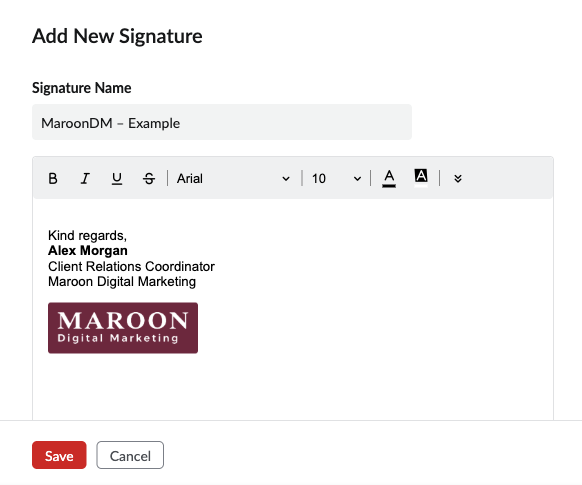
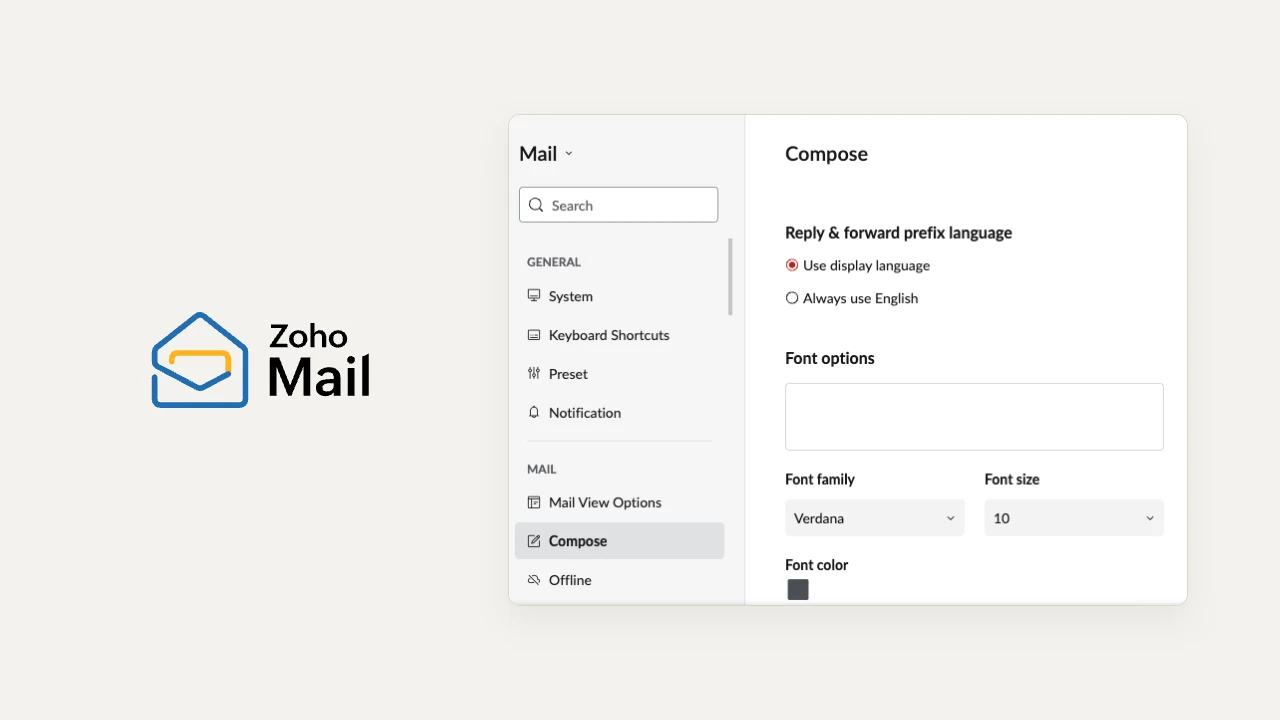
Set your default writing font
Settings → Compose → Font options
Choose a font family, size and color for new messages. Start with a readable font and dark text, or follow your team’s email style. Open a new draft to check the result. You can still change formatting on a single message.
Zoho instructions (opens in a new tab)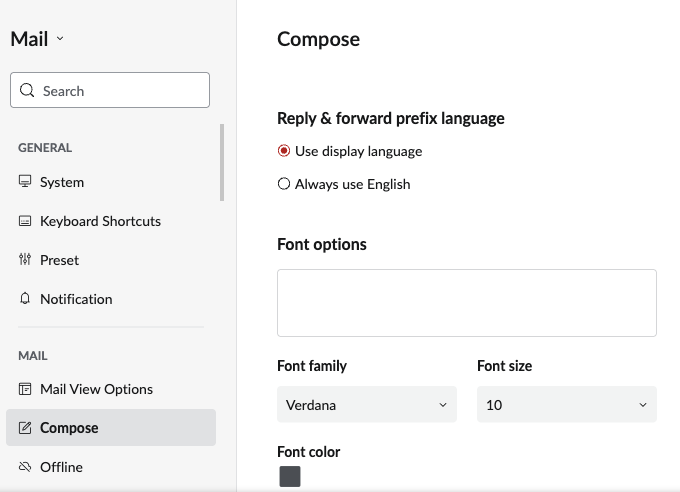
Give yourself time to undo a send
Settings → Compose → Undo within
In Zoho Mail on the web, turn on Undo Send and choose a window from 5 to 30 seconds. For the most time to catch a mistake, choose 30 seconds. After pressing Send, use Undo while the notice is still visible. This is separate from Outbox delay and cannot recall a message after the window closes.
Zoho instructions (opens in a new tab)
Forward new messages and keep a copy
Settings → Mail accounts → Select account → Forwards
Use Add New Email Forwarding only for an address your organisation authorises. Verify the destination as Zoho prompts, and leave Delete original email copy after forwarding off. Forwarding sends copies of future incoming messages; it does not move old mail or let you send as your work address from the destination inbox. Availability depends on your paid plan and administrator policy.
Troubleshooting forwarding: If Forwards is missing, ask your administrator whether your organisation hides the setting. Zoho does not offer this feature to new Free-plan accounts. If Forwards is visible but rejects an outside address, ask your administrator whether external forwarding is blocked. Once the destination is verified, test with a new message sent directly to your work address. Check that the original stays in Zoho and that a copy reaches the approved destination. Zoho skips messages that were already auto-forwarded. If you use a selective filter, also test that a message outside the rule is not forwarded. Zoho’s administrator policy (opens in a new tab)
Zoho instructions (opens in a new tab)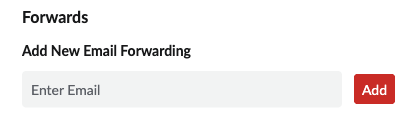
Organise incoming mail with folders and filters
Folders → +; Settings → Filters → Incoming emails
Create a folder, then add an incoming filter with a narrow condition, such as a specific sender, and choose Move to folder. Leave existing mail alone by default; review the condition before running a filter on old messages.
Zoho instructions (opens in a new tab)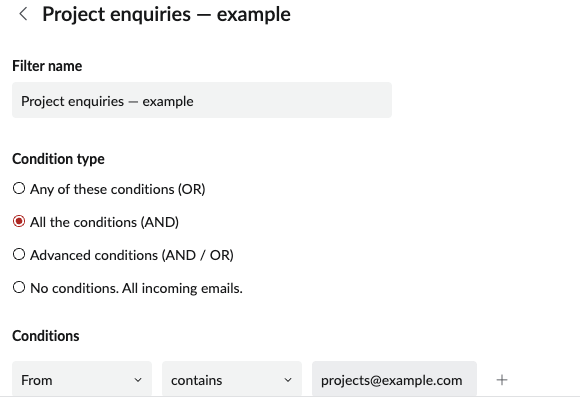
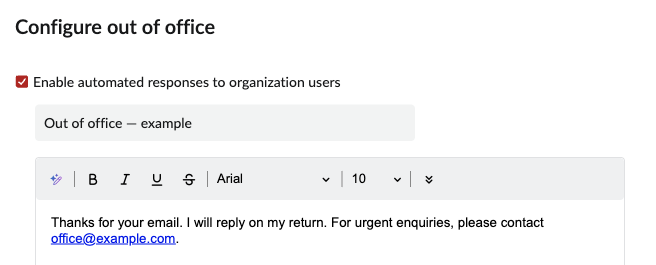
Set an out-of-office reply
Settings → Out of Office
Set your start and end dates, choose who should receive the reply, and write a short message with an approved contact for urgent requests. Keep travel plans and other private details out of the automatic reply.
Zoho instructions (opens in a new tab)