


Start a conversation
Public guide · Zoho Mail

Zoho Mail login.
On any device.

A simple guide to opening Zoho Mail in your browser, on your phone or in a desktop app. Start with the option that works for you.

Before you start

Account ready?
Let’s sign in.

Have your full email address and your Zoho sign-in method ready. Keep your verification method nearby if two-step verification is enabled. This guide is for a mailbox that has already been set up, not for creating a new account.

Enter your password and verification codes only on Zoho’s official screen. Never share them with anyone or include them in screenshots. If you recently moved providers, your Zoho password may differ from your old mailbox password.

01 · Start here

In your browser

The quickest way to open your inbox on a computer. No installation needed.

  1. Open Zoho Mail using the button below.

  2. Sign in with your full email address and your Zoho password, or the sign-in method configured for your account.

  3. Complete any verification Zoho requests. If another account opens, use the correct account for your business mailbox.

  4. Bookmark your inbox for next time. Sign out when you finish on a shared computer.

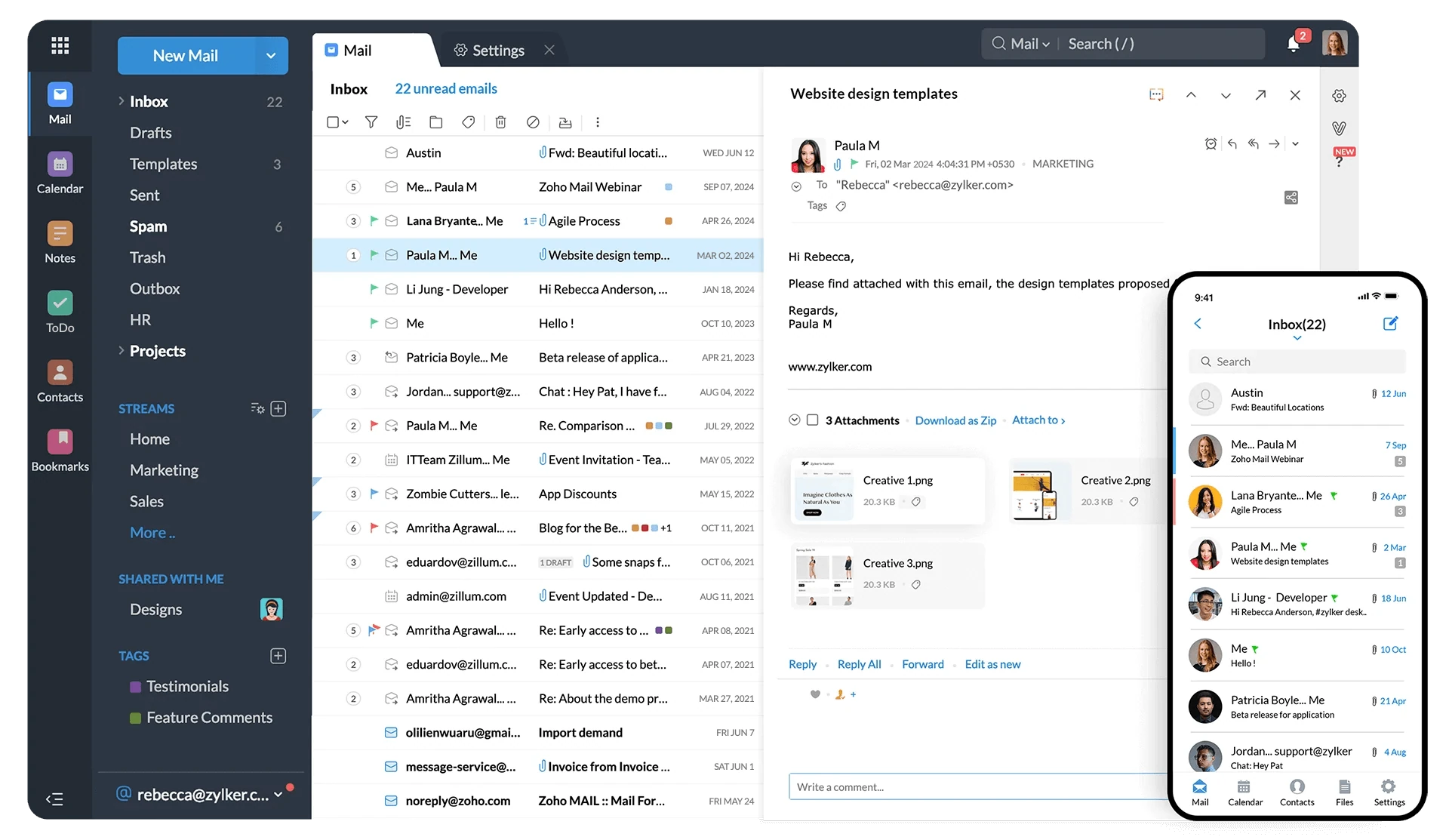
Zoho Mail web inbox with a mobile inbox preview.
Zoho product visual. Your app version may look different.Explore Zoho webmail (opens in a new tab)
02 · iPhone and Android

On your phone

Start with the official Zoho Mail app for a straightforward mobile setup.

  1. Download Zoho Mail from your phone’s app store using the official links below.

  2. Choose Zoho Mail, the email app, rather than Zoho Mail Admin, which is for administrators.

  3. Sign in with the same full business email address and Zoho password, then complete verification if requested.

  4. Open your inbox. For new-message alerts, review notifications in the app and your phone’s permissions.

Download on the App StoreGet it on Google Play
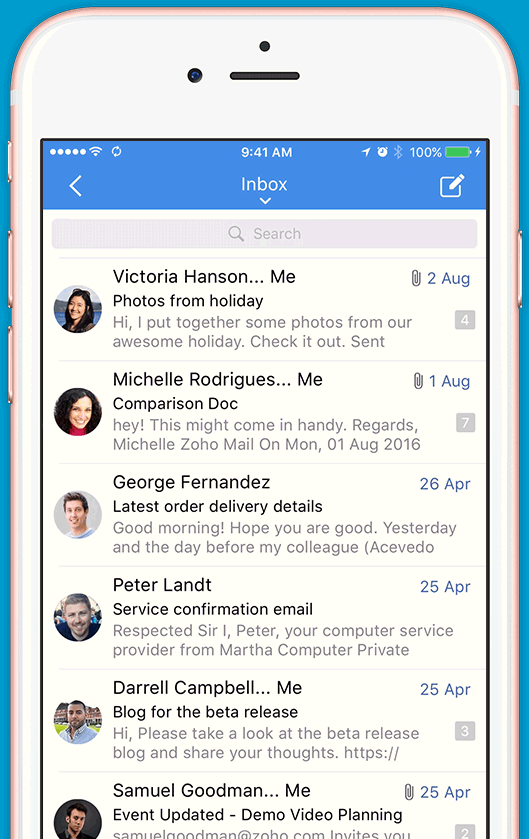
Zoho’s mobile app demonstration, showing an example inbox.
Zoho product visual. Your app version may look different.Explore the Zoho Mail mobile app (opens in a new tab)
03 · Optional

In a desktop app

Prefer a separate window for email? Use Zoho Mail Desktop Lite.

  1. Open the official download page and choose Windows, Mac or Linux.

  2. Choose the version for your computer, then follow the installer’s instructions.

  3. Open the app and sign in with your business email address and Zoho password.

  4. Complete verification if prompted, then use your mailbox while connected to the internet.

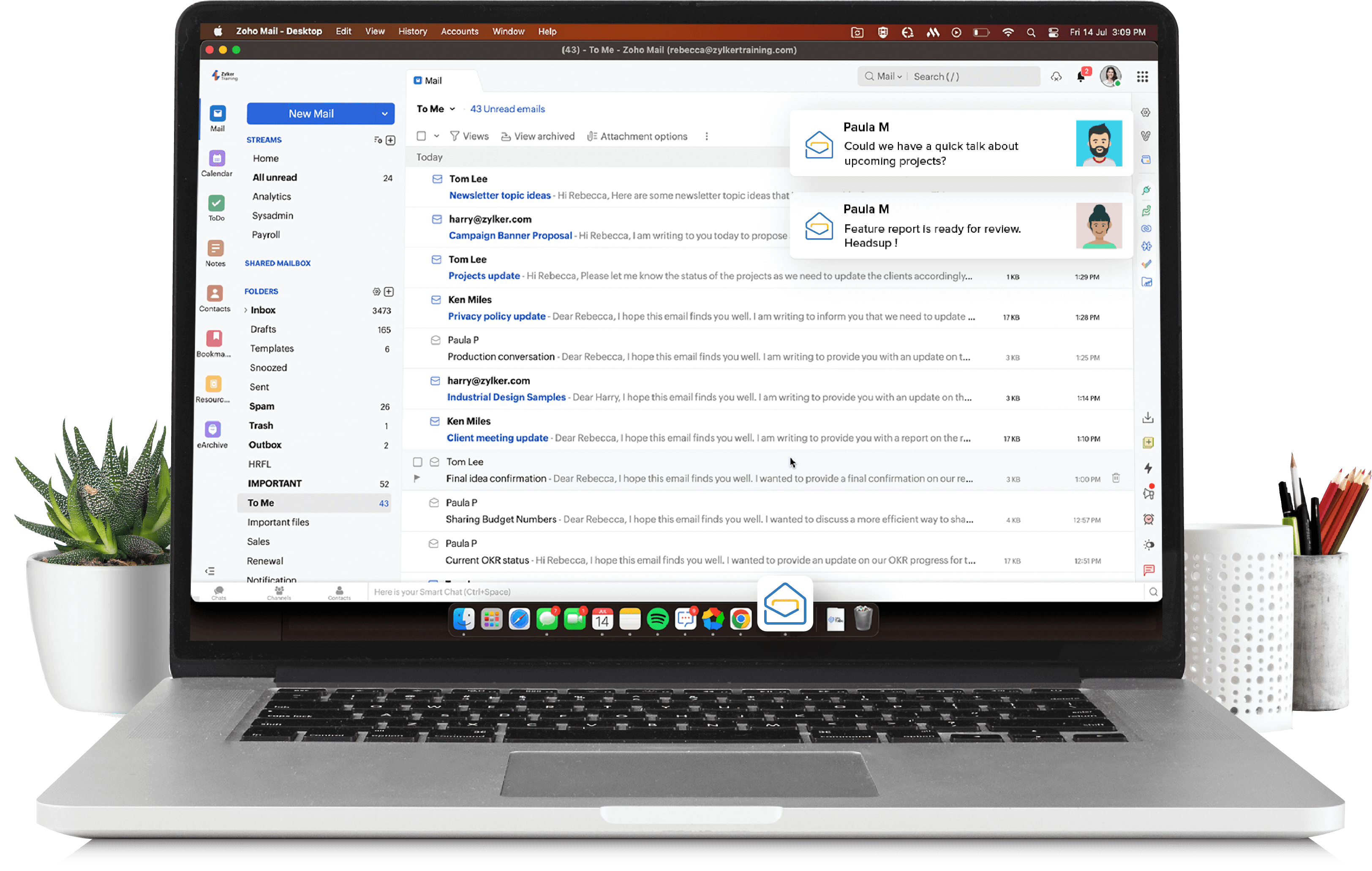
Zoho Mail Desktop Lite pictured on a laptop with example messages.
Zoho product visual. Your app version may look different.Explore Zoho Mail Desktop Lite (opens in a new tab)
A little help

Common questions.
Clear next steps.

Do I need Outlook or Apple Mail?

No. Your browser and Zoho’s own apps are enough. Other email apps need separate configuration, which can depend on your plan and data centre. Use Zoho’s official setup instructions for your account rather than guessing server settings.

My sign-in is not working

Check the email address and sign-in method for your Zoho account. For a personal account, use “Forgot Password?” on Zoho’s sign-in page. For an organization account, ask your mail administrator about recovery. Never share passwords or verification codes.

Will messages also reach my Gmail?

Only when forwarding has been configured and verified. Signing in to Zoho and forwarding mail to Gmail are separate things. Do not rely on forwarding until its activation has been confirmed.

Recently moved to Zoho?

Signing in does not confirm that a migration is complete. Your mail administrator should verify delivery and transferred folders before retiring the previous service. Some messages may still reach the previous provider while DNS updates spread.