
Clear feedback.
A smoother next version.
Bring your team’s comments together so we can understand what needs changing, where it belongs and which files to use.
https://maroondm.com/guides/website-feedback/
Opens your browser’s print dialog. Choose “Save as PDF” to create a copy you can share.
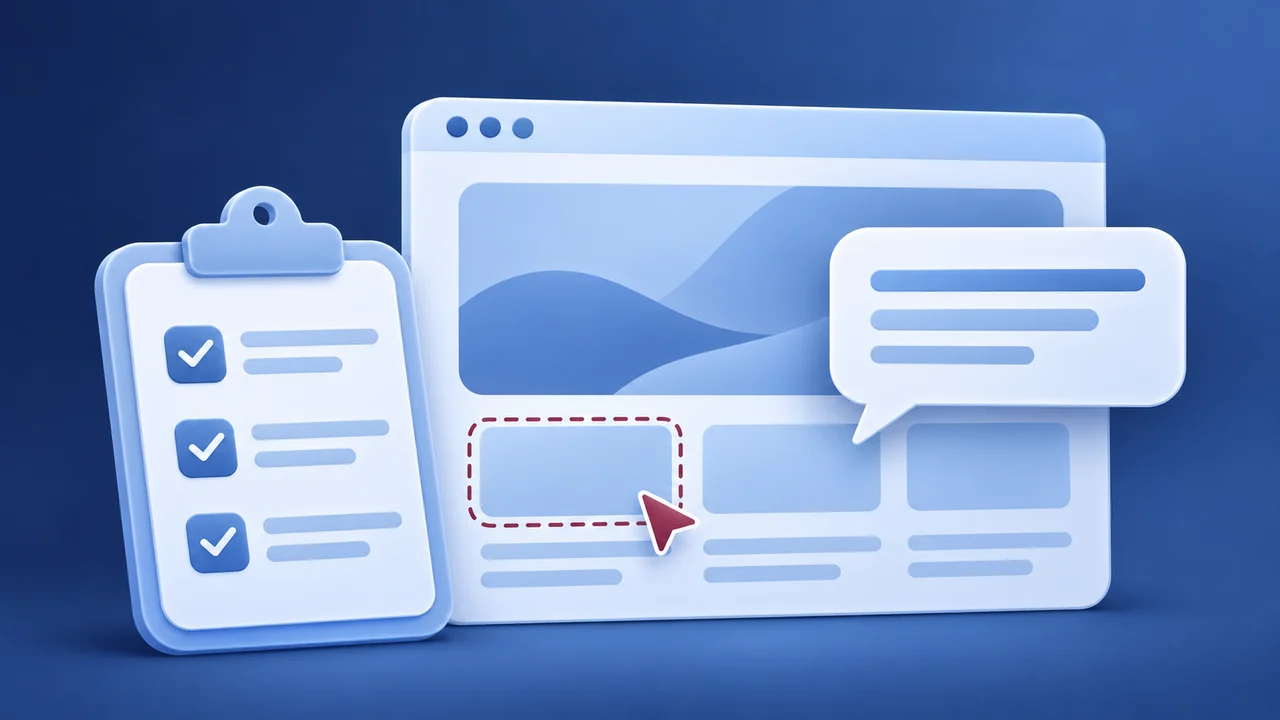
Bring the feedback together.
Use one Word document or annotated PDF for each review batch. Include the supporting images, logos and copy in the same email, or link to the shared folder containing them. This keeps the instructions and assets connected.
Review the website on desktop and mobile, and in both languages where provided. Check the relevant pages, links, forms and content. Gather your team’s comments and resolve conflicting instructions before sending.
Group comments by page, then by section. Give each item a number so we can refer to it clearly.
Nominate one person to coordinate the batch. Reply in the existing project email thread where possible. Use a subject such as “Website feedback · Batch 2 · 14 November”.
If something arrives later, identify it as an addition to that batch rather than silently replacing an earlier file.
Show the place.
Explain the change.
A screenshot helps us locate the issue. A short written note explains the intended outcome. Include both where possible.
Add the page link and section name. For an issue seen only on a particular device, mention the device, browser and light or dark mode.
Crop to the relevant area but leave enough surrounding content to identify it. Circle or number the part you mean.
Describe what should change and why. Supply the exact replacement wording when you have approved text.
Name the matching supporting file, such as “Office-reception.jpg”. Send the original image too, not only an image pasted into the document.
Screenshots are helpful.
Not a barrier.
Choose a method that is comfortable for your team. The aim is clear, consolidated feedback, not a particular software subscription.
Word: place a screenshot beneath the page heading and add numbered notes below it. Export to PDF if that is easier to review.
PDF: use comments or annotation tools, then save a copy with the comments visible. Check that the recipient can see them.
Plain text: if annotating is difficult, send a numbered list in the email with page links, section names and the requested changes. Include separate screenshots where useful.
If writing or annotating is difficult, ask for a call or send a voice note using the agreed project channel; we can confirm the actions in writing. A short screen recording can help explain an interaction. Add a written summary and timestamps so the request remains accessible and easy to reference.
A quick final check.
Send only information and assets needed for the website review. A little checking now avoids uncertainty in the next revision.
Check that the document opens, notes are readable and links work for the intended recipient. Keep a copy of the batch you sent.
Remove passwords, verification codes, personal inbox content and unrelated private information from screenshots and recordings.
Confirm that supplied images and text are approved for the intended website use. Flag anything that is not yet cleared.
If attachments are too large for email, include an accessible shared-folder link in the same email. Limit access to the people who need it.
A useful comment looks like this
Example only: “03 · About page · Our team section · On mobile, the paragraph sits too close to the image. Please add a small gap between them. Keep the image crop unchanged. Screenshot 03 attached.”
What happens next?
We review the batch, clarify anything ambiguous and identify any request that needs a separate scope or timing discussion before proceeding. Once the changes are ready, review the updated pages against your numbered comments. This guide explains how to share feedback; your agreed proposal or scope sets the project’s review terms.
Send your feedback in the project email thread. If you are unsure how to prepare it, ask us first.